
Export Active Directory Users to CSV File
In this guide, you’ll learn how to export Active Directory users to a CSV file using PowerShell and Entralyzer, making it easy to report, share and audit user data.
Method 1: Export AD Users to CSV with PowerShell
Section titled “Method 1: Export AD Users to CSV with PowerShell”-
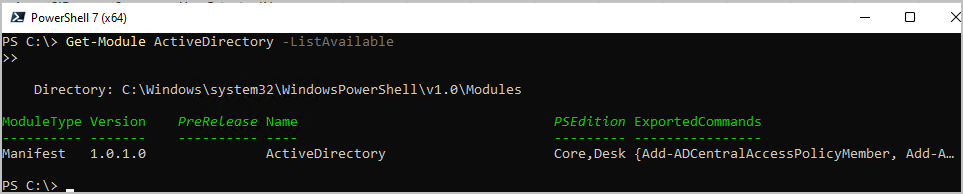
Log into a computer that has the Active Directory PowerShell Module installed. This is included if you have RSAT installed or you are logged into a domain controller. You can verify the PowerShell module is installed with the following command:
Terminal window Get-Module ActiveDirectory -ListAvailableExample output
-
Open PowerShell and run the following command. Update the
<FilePath>to the location where you want to save the file.Terminal window Get-ADUser -filter * | Export-Csv -path <FilePath> -NoTypeInformationExample command
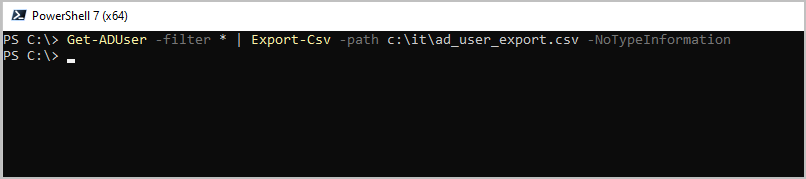
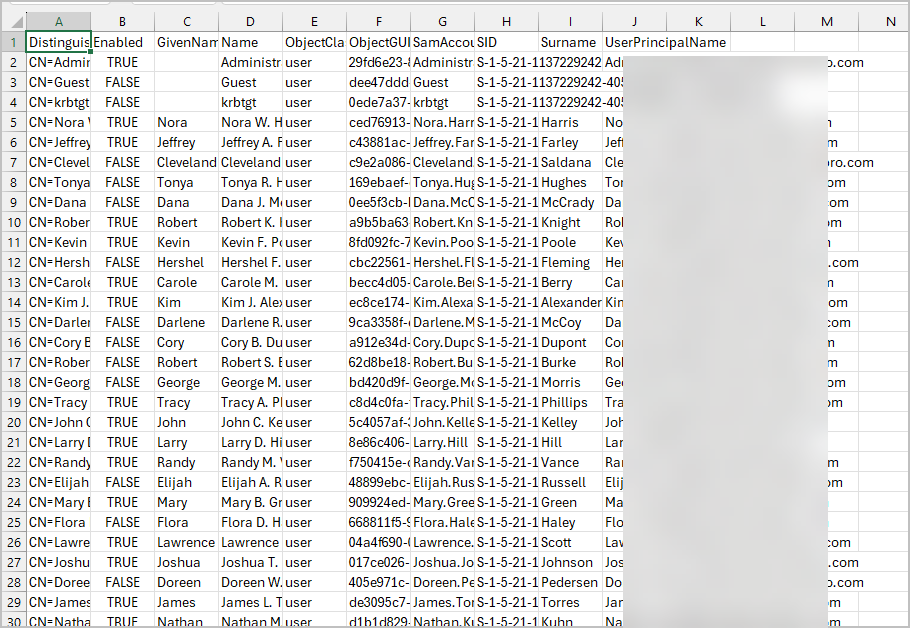
When the command completes, you’ll have a CSV file at the path you specified
CSV Example
Method 2: Export AD Users to CSV with Entralyzer
Section titled “Method 2: Export AD Users to CSV with Entralyzer”Entralyzer is a GUI based tool that makes it easy to export Active Directory users and other data from Active Directory and Microsoft 365.
-
In the app, navigate to
Reports>Active Directory>All Users -
Click the
Columnsbutton to add or remove users field to the report. -
Click the
Exportbutton and select your export format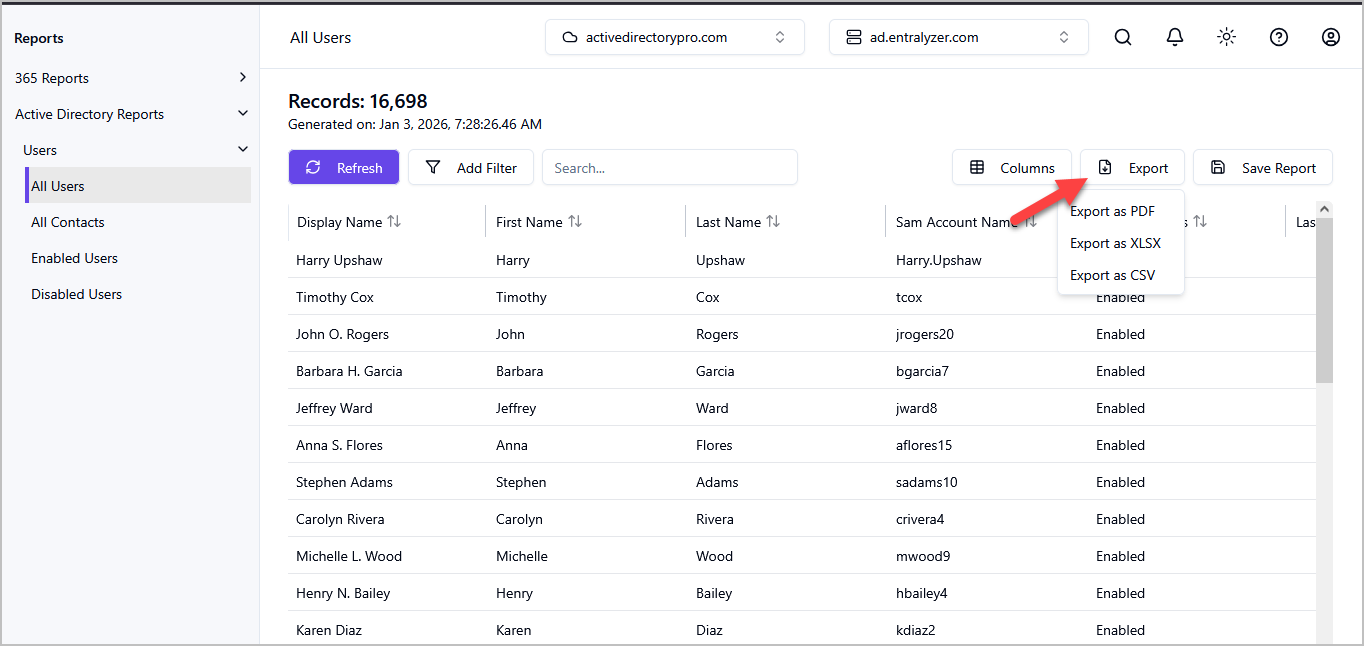
Export Specific Users
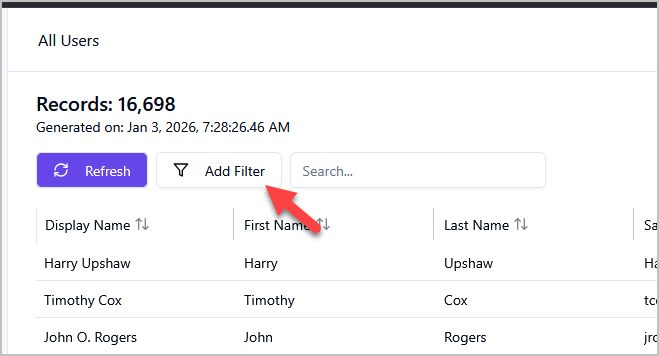
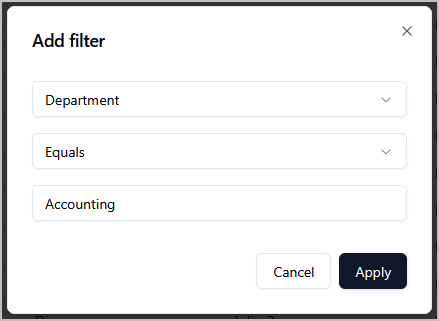
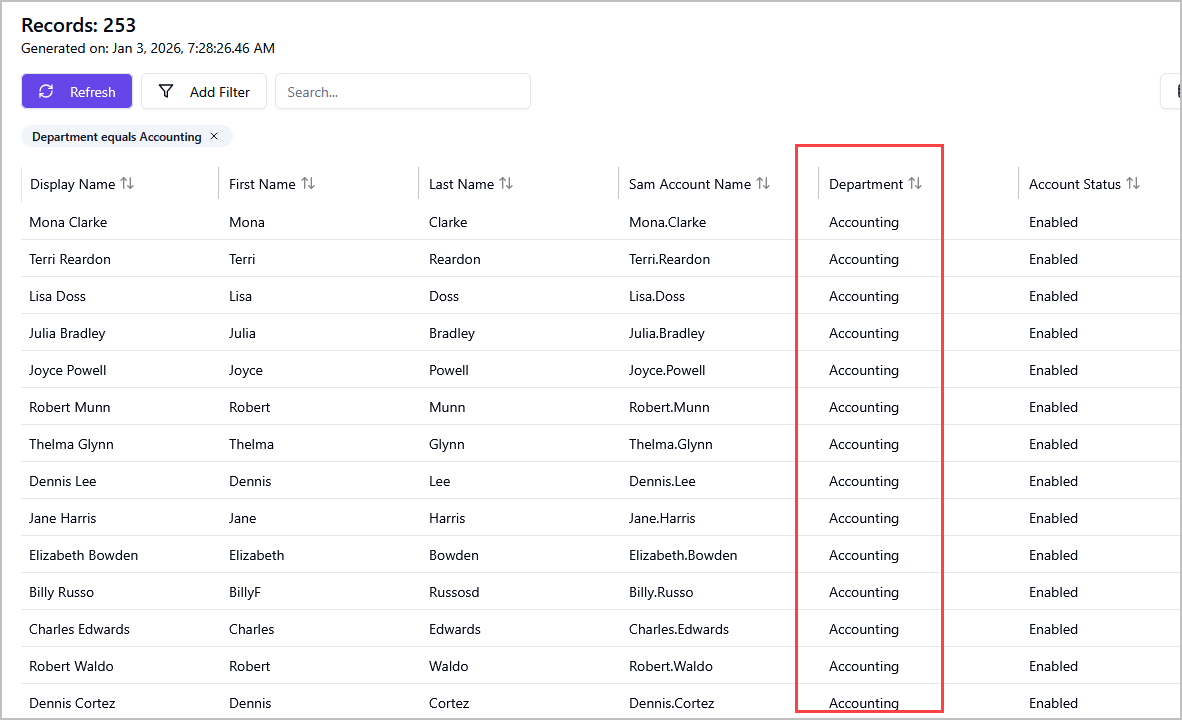
Section titled “Export Specific Users”With Entralyzer you can add filters to display and export specific users. For example, you can add a filter to display all users in a specific department.
Click the Add Filter button.
Next, specify the filter settings and click Apply.
Now you will have a list of all users in a specific department that you can export.
More PowerShell Examples
Section titled “More PowerShell Examples”Here are some additional powershell commands for exporting ad users to csv.
Export All AD User Properties
Section titled “Export All AD User Properties”By default, the Get-ADUser command does not get all user fields. You need to include -Properties * to export all users fields.
Get-ADUser -filter * -Properties * | Export-Csv -path c:\it\AllUsers.csv -NoTypeInformationExport a Specific Active Directory User
Section titled “Export a Specific Active Directory User”Export a specific users by using -identity property and then the username.
Get-ADUser -identity robert.allen -Properties * | Export-Csv -path c:\it\SpecificUser.csv -NoTypeInformationExport AD Users with Specific Attributes
Section titled “Export AD Users with Specific Attributes” Get-ADUser -Filter * -Properties EmailAddress, Department, Title | Select-Object Name, SamAccountName, EmailAddress, Department, Title | Export-Csv -path "C:\it\UsersSpecificAttributes.csv" -NoTypeInformationExport Users from a Specific OU
Section titled “Export Users from a Specific OU”You need to set the SearchBase to the distinguishedName of the OU.
Get-ADUser -Filter * -SearchBase "OU=Accounting,OU=ADPRO Users,DC=ad,DC=activedirectorypro,DC=com" | Select-Object Name, SamAccountName | Export-Csv "C:\it\AccountingUsers.csv" -NoTypeInformationExport Enabled Users Only
Section titled “Export Enabled Users Only” Get-ADUser -Filter 'Enabled -eq $true' | Select-Object Name, SamAccountName | Export-Csv "C:\it\EnabledUsers.csv" -NoTypeInformationExport Disabled Users Only
Section titled “Export Disabled Users Only” Get-ADUser -Filter 'Enabled -eq $false' | Select-Object Name, SamAccountName | Export-Csv "C:\it\DisabledUsers.csv" -NoTypeInformationExport AD Users with Last Logon Date
Section titled “Export AD Users with Last Logon Date” Get-ADUser -Filter * -Properties LastLogonDate | Select-Object Name, SamAccountName, LastLogonDate | Export-Csv "C:\it\LastLogonDate.csv" -NoTypeInformation