Create Guest User in Microsoft 365
In this guide, you’ll learn how to add a guest user to your Microsoft Entra directory using the Microsoft Entra admin center. You’ll also send the invitation and walk through what the guest sees when they accept it.
Prerequisites
Section titled “Prerequisites”- You need a role that will allow you to create users in your tenant. For most organizations, Guest Inviter or User Administrator is the safest choice since they provide just enough access without giving full admin rights.
- Access to a valid email address outside of your Microsoft Entra tenant, such as a separate work, school, or social email address. You’ll use this email to create the guest account in your tenant directory and access the invitation.
Invite an External Guest User
Section titled “Invite an External Guest User”-
Sign into the Microsoft Entra Admin Center
-
Browse to
Entra ID>Users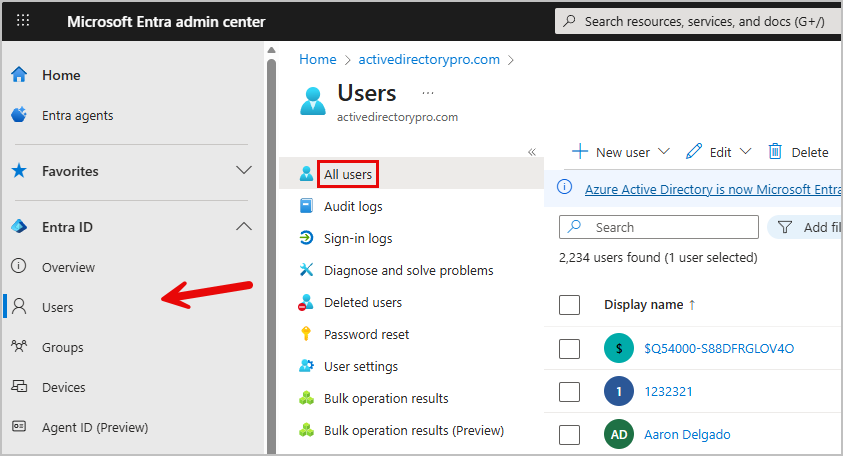
-
Select
New UserthenInvite External User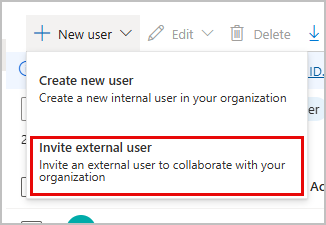
External Users Basics
Section titled “External Users Basics”-
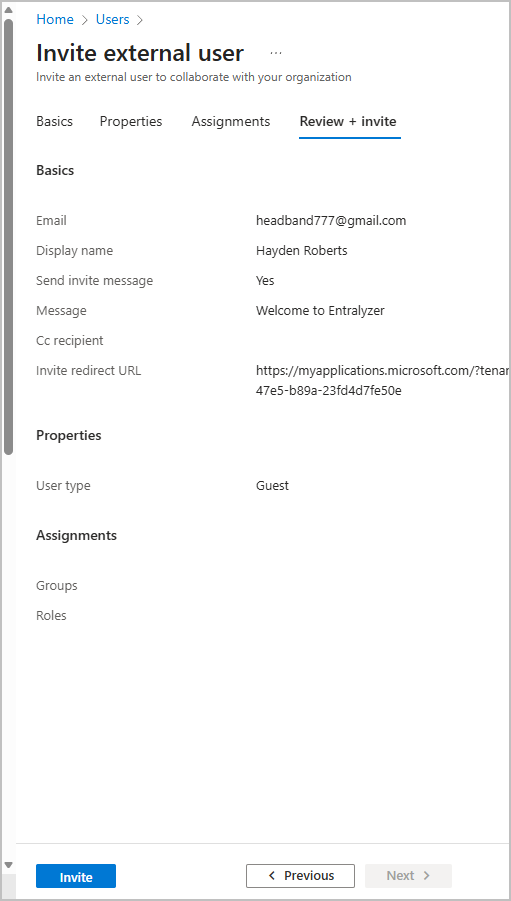
Under the basics tab is where you will enter the email, display name, and an optional invitation message. Next Click
Next: PropertiesorReview + Inviteif you have no additional information you need to add.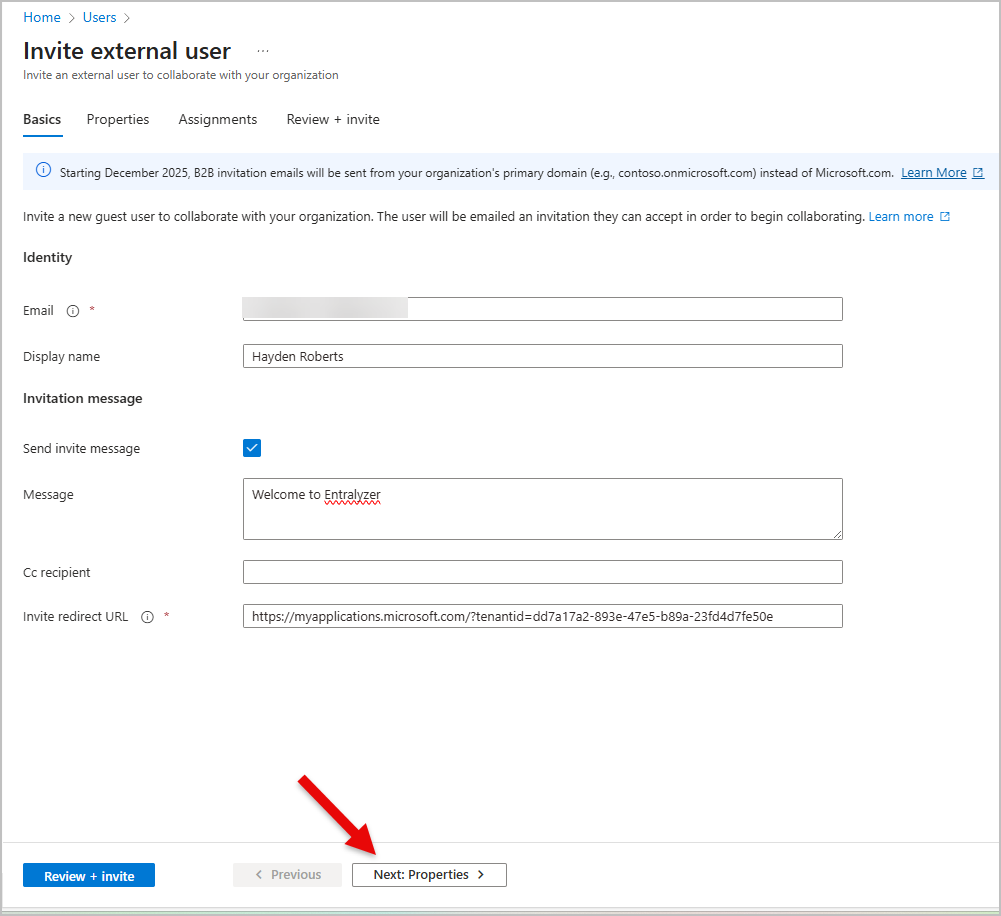
Review + Invite
Section titled “Review + Invite”-
Review the details on the review + invite tab, if everything looks correct click invite at the bottom of the page.
An email invitation will automatically be sent.
User Accept Invitation
Section titled “User Accept Invitation”-
The guest user will need to check their email for the invitation (check spam folder). Click
Accept invitation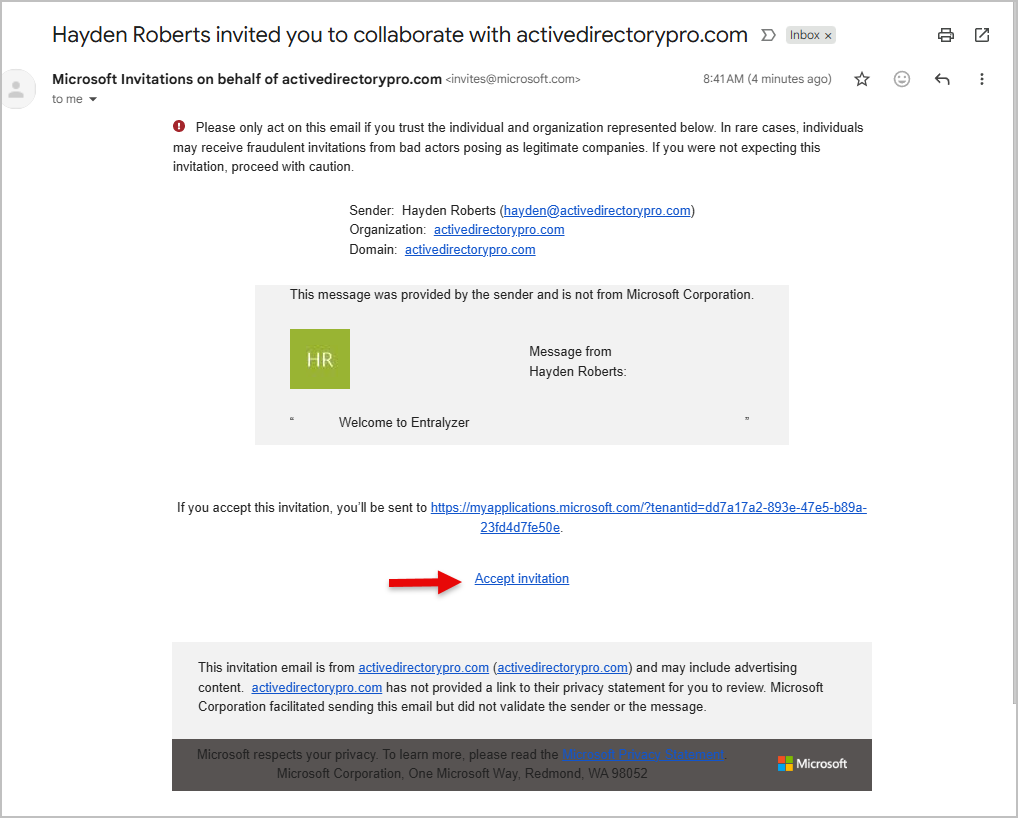
-
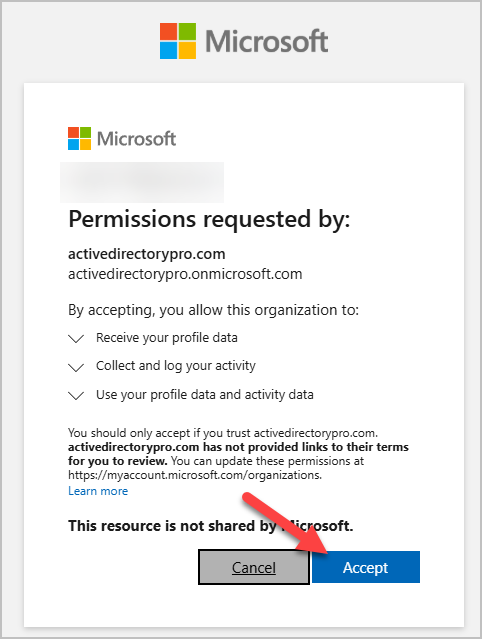
A browser page will open asking for permission. Click accept again.
Check Invitation Status
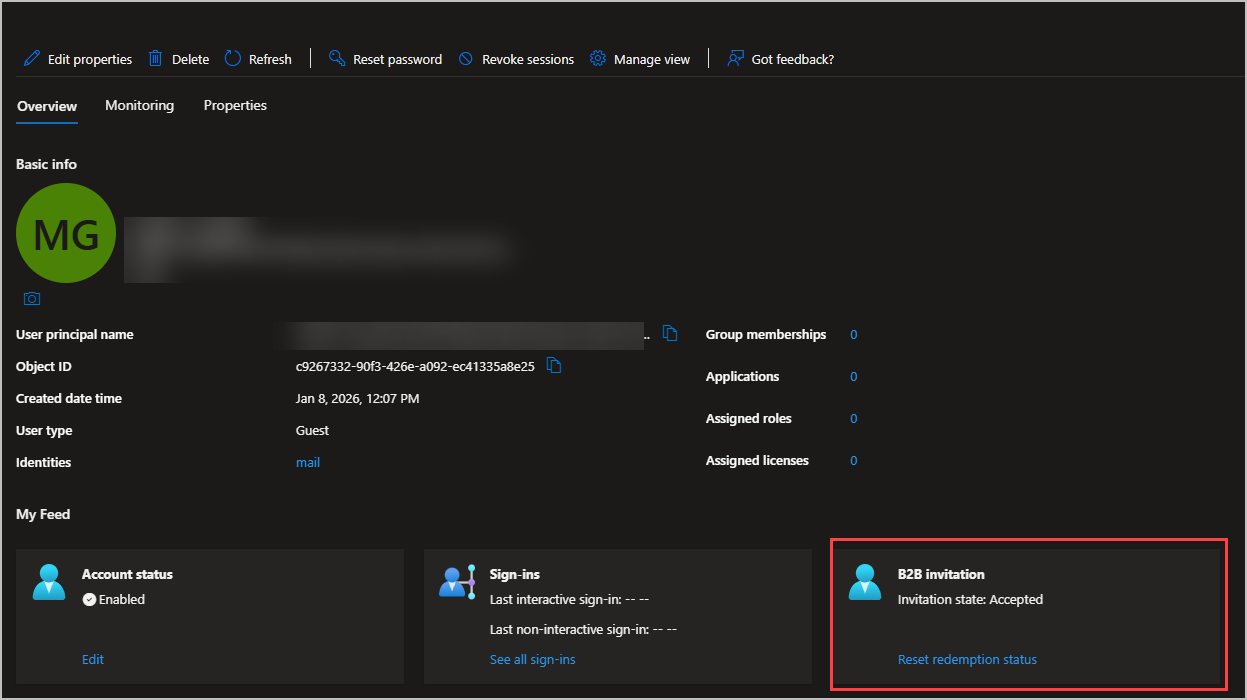
Section titled “Check Invitation Status”When you invite an external guest user by sending an email invitation, you can check the status of the invitation from the user’s details.
-
Go to Entra ID > Users and select the invited guest user.
-
In the My Feed section, review the B2B collaboration tile.
Guest User Access
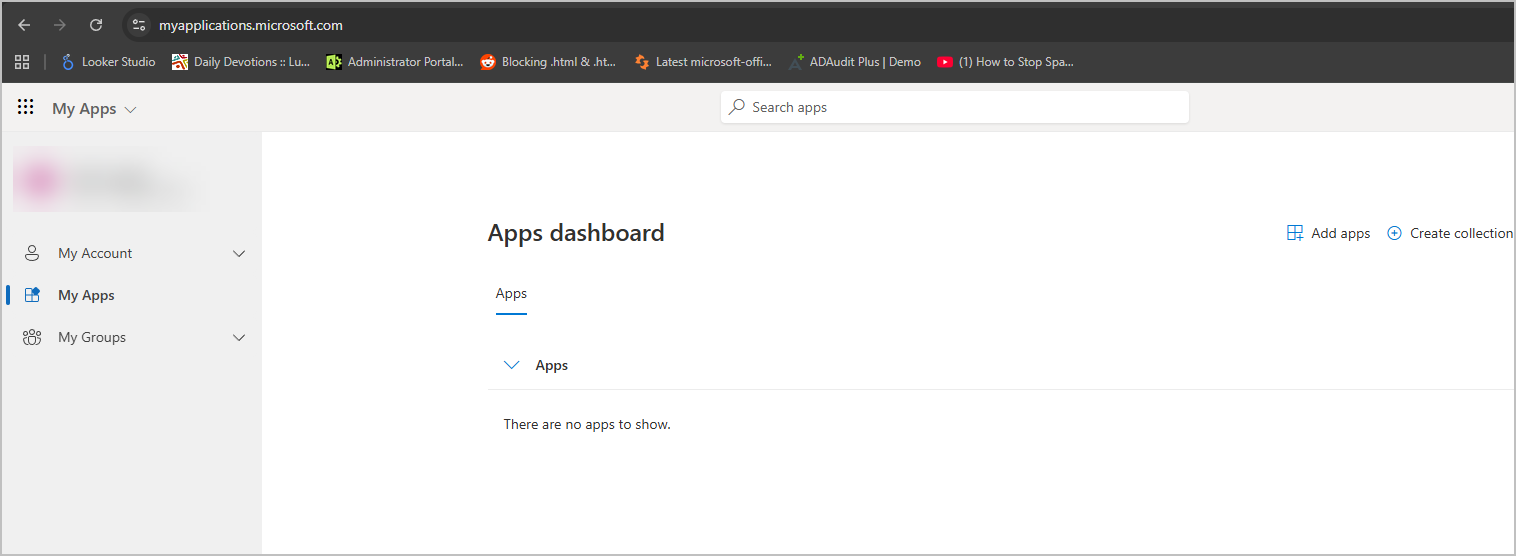
Section titled “Guest User Access”Guest users do not sign in the same way as internal users. Primary access is through the My apps portal page.
By default, guest users do not have access to apps.